MCAP
Load local and remote MCAP (.mcap) files.
Live data
In Foxglove, select "Open connection" in the "Open data source" dialog.
Remote file
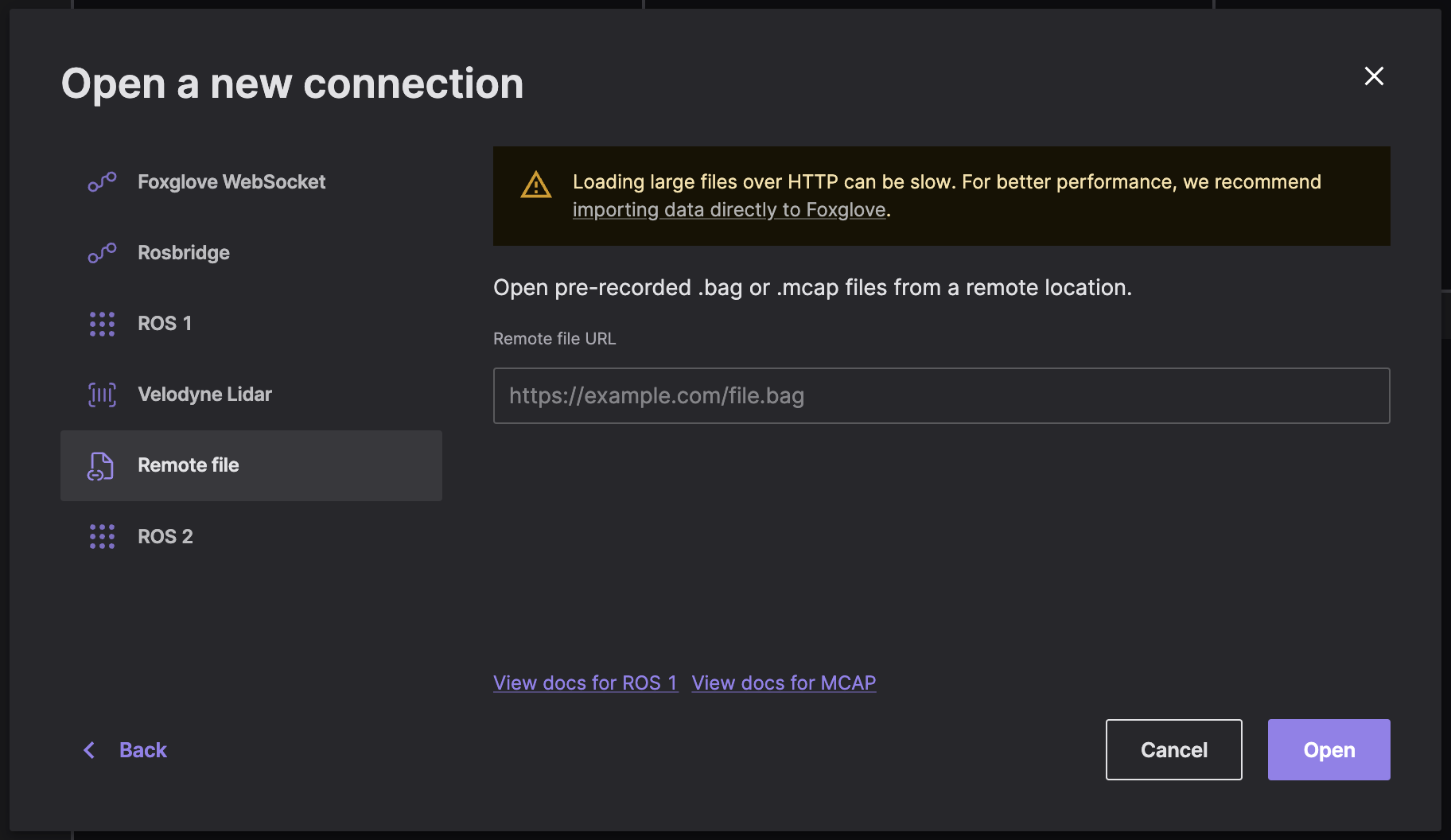
Select "Remote file" in the "Open data source" dialog, and enter the URL to your remote .mcap file:
Check out the directions for setting up CORS to load remote data files into Foxglove.
Local data
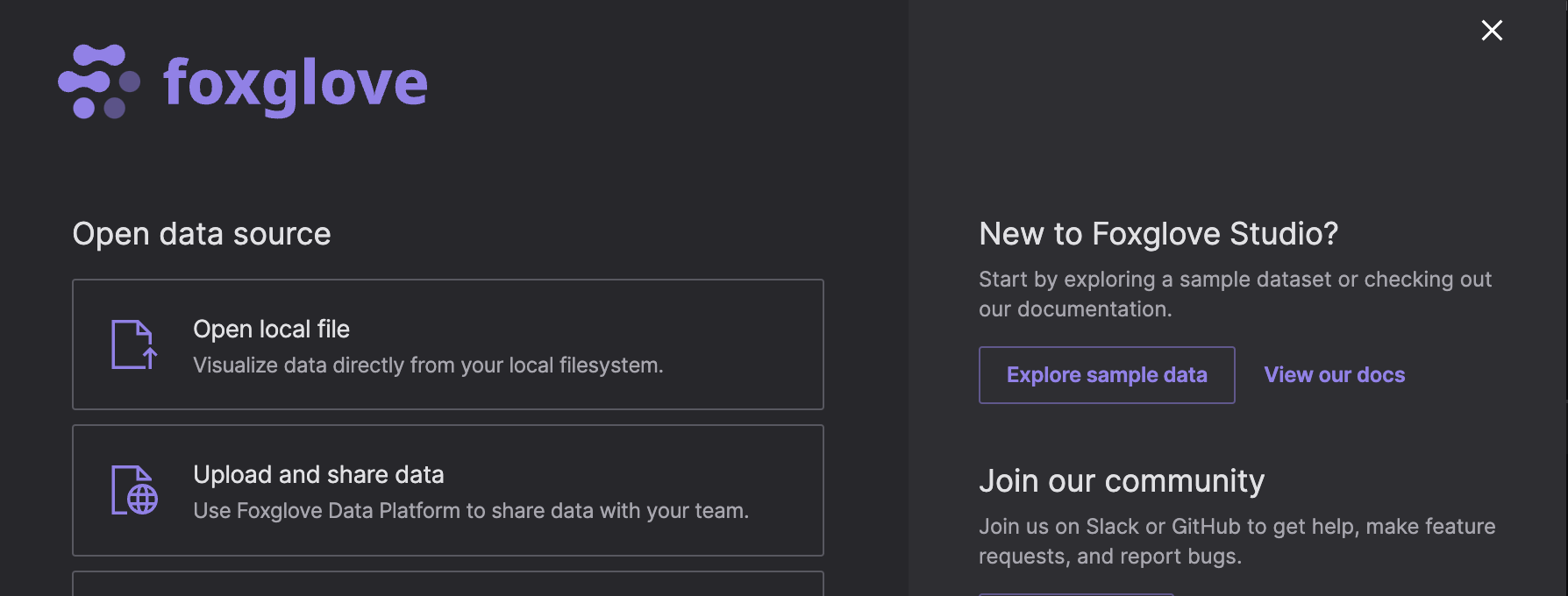
To load a local file for visualization, you have several options:
- Double-click the file from your file manager
- Drag-and-drop the file into Foxglove directly
- "Open local file" in the "Open data source" dialog to select a file from your filesystem
Imported data
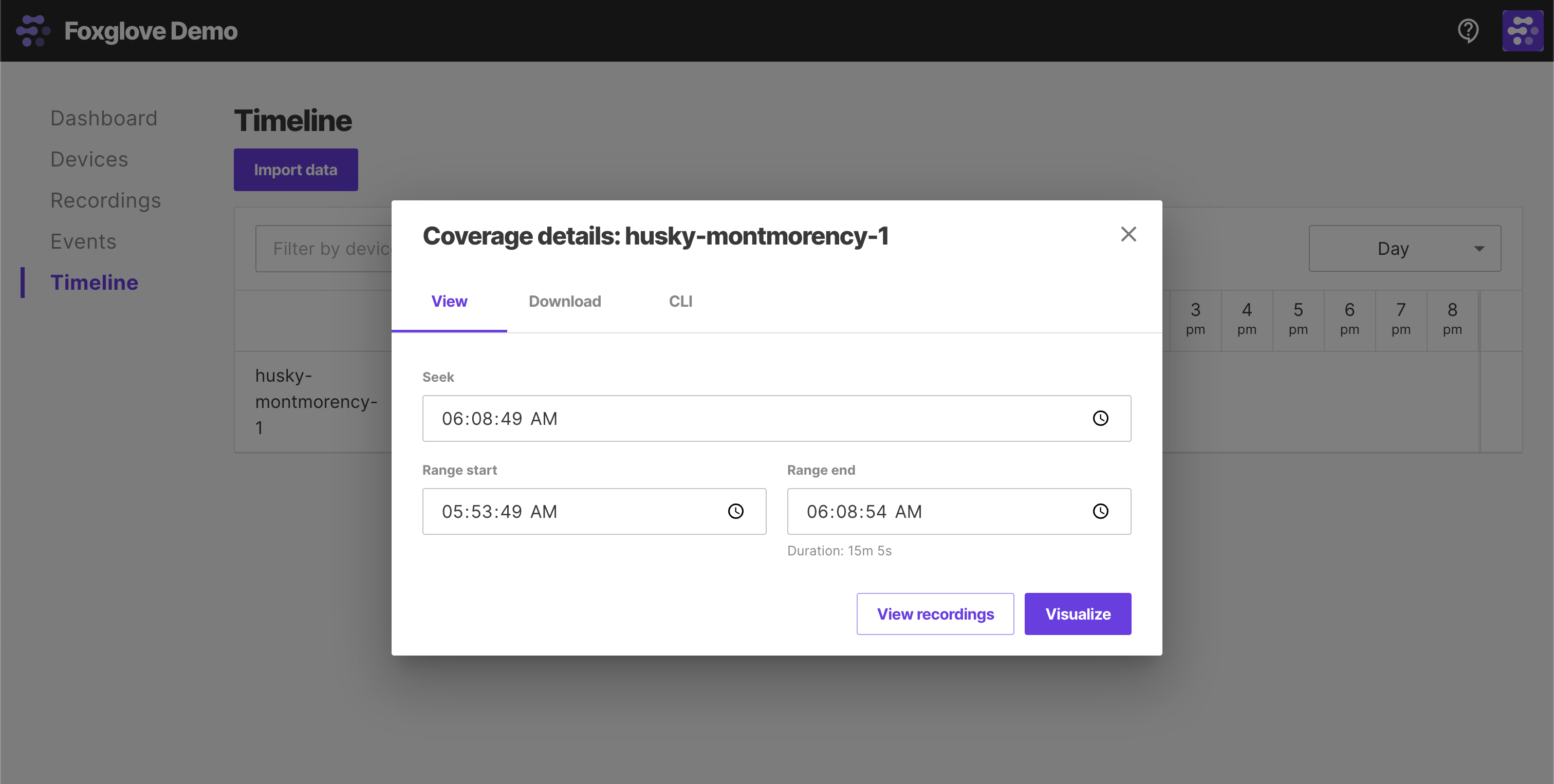
Use Foxglove to upload your MCAP (.mcap) files and stream it directly for visualization.
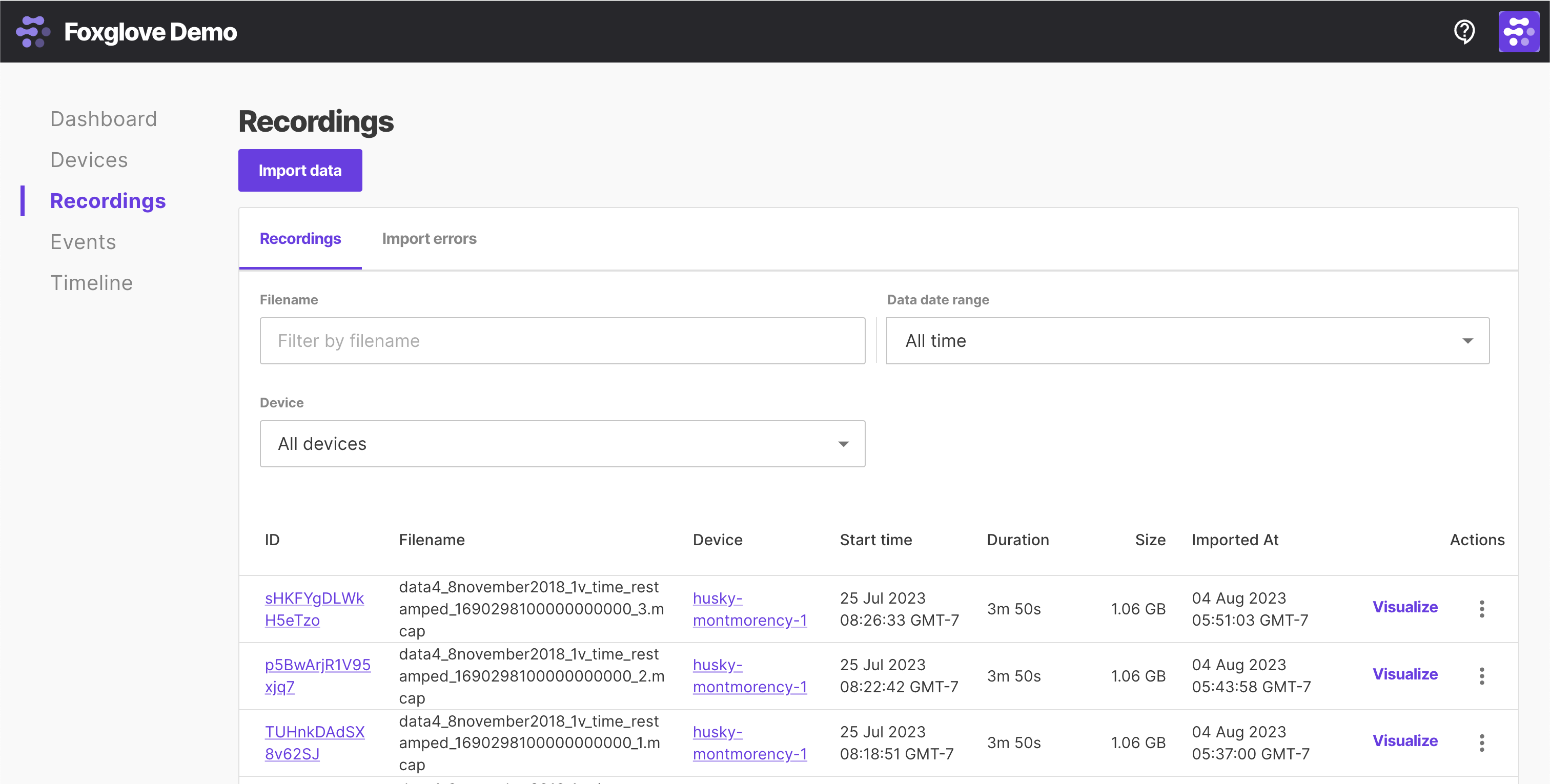
After importing data to Foxglove, select individual resources to "Visualize" on the Recordings or Events pages:
Select a custom time range of data (can span multiple recordings or events) to "Visualize" on the Timeline page: